|
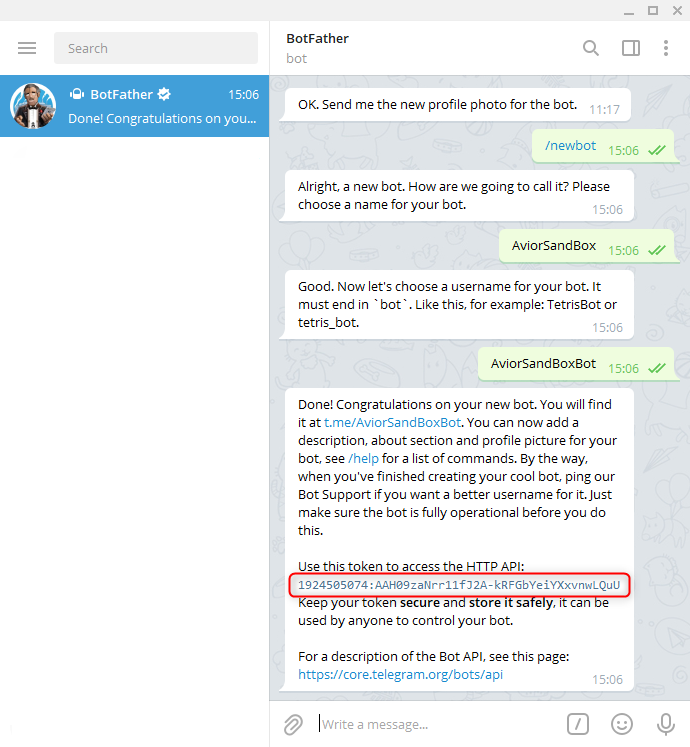
CUSTOM BOT If instead of managing your devices from the generic AviorControl bot you want to have dedicated bots for each device, open Telegram and search for @BotFather, which allows you to create and manage your bots. |
|
|
|
Type /newbot and follow the instructions: first give your bot a meaningful name, this will be the name you will see in the chat, for example: AviorSandBox username is specific to each bot, must be unique and must end with Bot, you could for example enter: AviorSandBoxBot The bot is ready. Copy the API key (token) that @BotFather gave you. |
|
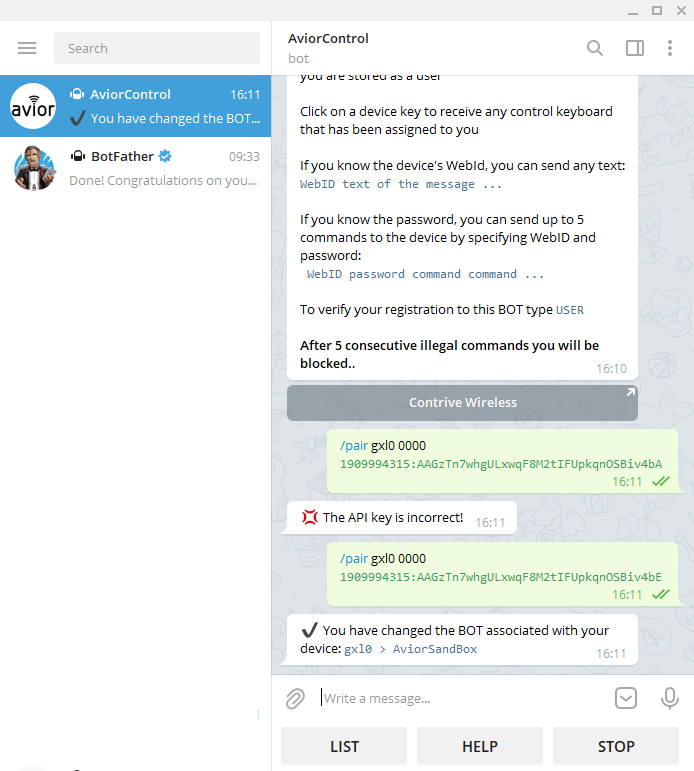
Open the AviorControl chat (you must be registered first). Type /pair followed by the identification (WebId) and password of the device to be associated and the API key (token) you previously copied, for example: /pair gxl0 0000 AAH09zaNrr11fJ2A-kRFGbYeiYXxvnwLQuU |
|
|
|
If the device exists, if the password and API key are correct you will receive confirmation of the pairing. Now all Telegram messages sent from the associated device (with the TGM command) will be displayed in the specific AviorSandBox chat and everything you type in the AviorSandBox chat will be sent to the associated device. From @BotFather you can assign an image, edit or delete your bot. If you made a mistake during the settings, delete and re-create your bot |
|
Any text typed will be forwarded only to the associated device, those who use the dedicated bot will no longer have to worry about entering the WebId.
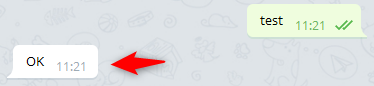
The paired device gxl0 will receive the text test. If the message has been successfully added to the queue that the device will fetch from the cloud, you will receive an OK in response, visible for 2 seconds. If a rule is defined on the device, it will be executed upon receipt of this text by a user, otherwise the text will be ignored by the device. The device can send messages in response to what has been received, defining appropriate behavioural rule
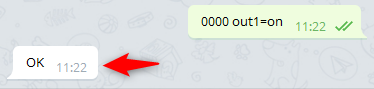
You can also send commands directly, but in this case you will always have to enter the device password before the text. In the example, the paired device gxl0 will receive the command out1=on. If the message has been successfully added to the queue that the device will fetch from the cloud, you will receive an OK in response, visible for 2 seconds. If the password 0000 is correct, output 1 will be activated. If you omit the password the command will not be executed. The device identifier is also omitted for sending the QR code From the dedicated bot you can use all the features of the generic AviorControl bot. |
|
To remove an existing association type /unpair followed by the identification (WebId) and password of the device, for example: /pair gxl0 0000 All messages sent by the device will be reverted to the standard AviorControl bot. If you no longer use the dedicated bot you can delete it by means of @BotFather. |
Avior